Some of the content described in this article is available in meshIQ Manage versions 12.1 and greater.
For a quick overview of what's new or changed, visit the meshIQ Highlights page for a version-by-version breakdown.
Jump to Section:
Version 12.x and Later
Version 11.3 and Earlier
Version 12.x and Later
The Settings window includes three distinct tabs. The General tab replaces the User Settings tab from earlier versions.
- The General tab located in User Settings displays individual settings specific to the logged-in user.
- The General Settings tab located in the Application Settings window displays system-wide settings that apply to all users. Only users with elevated permissions (Admins) can modify these settings.
- The General tab in Initial User Settings shows the default settings for new users. These settings are used when a user logs in for the first time or clicks the Restore Initial Settings button. Only Admins can change these settings.
For explanations of these settings, see User Settings Field Descriptions.
User Settings - General tab 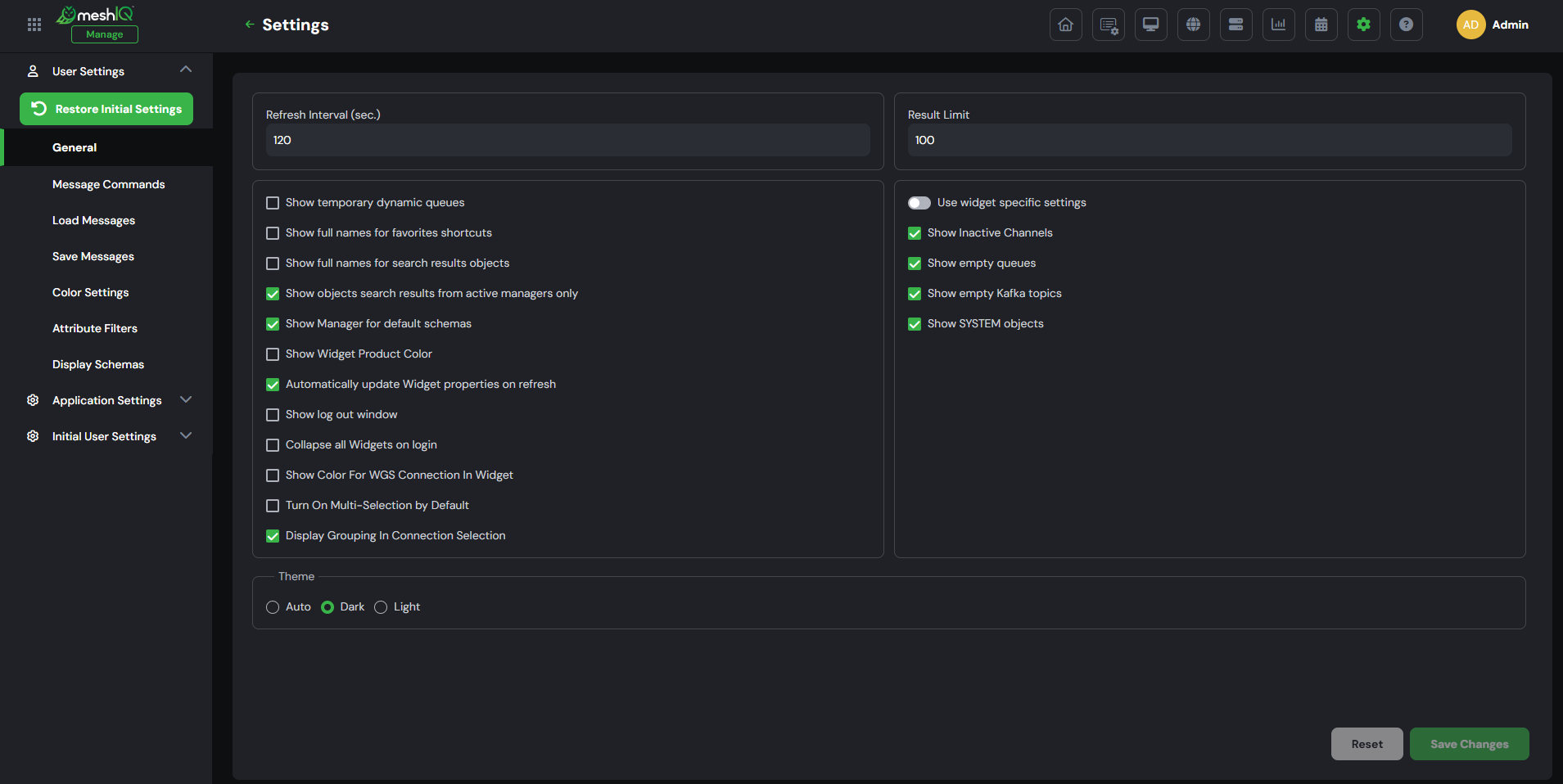
Application Settings - General Settings tab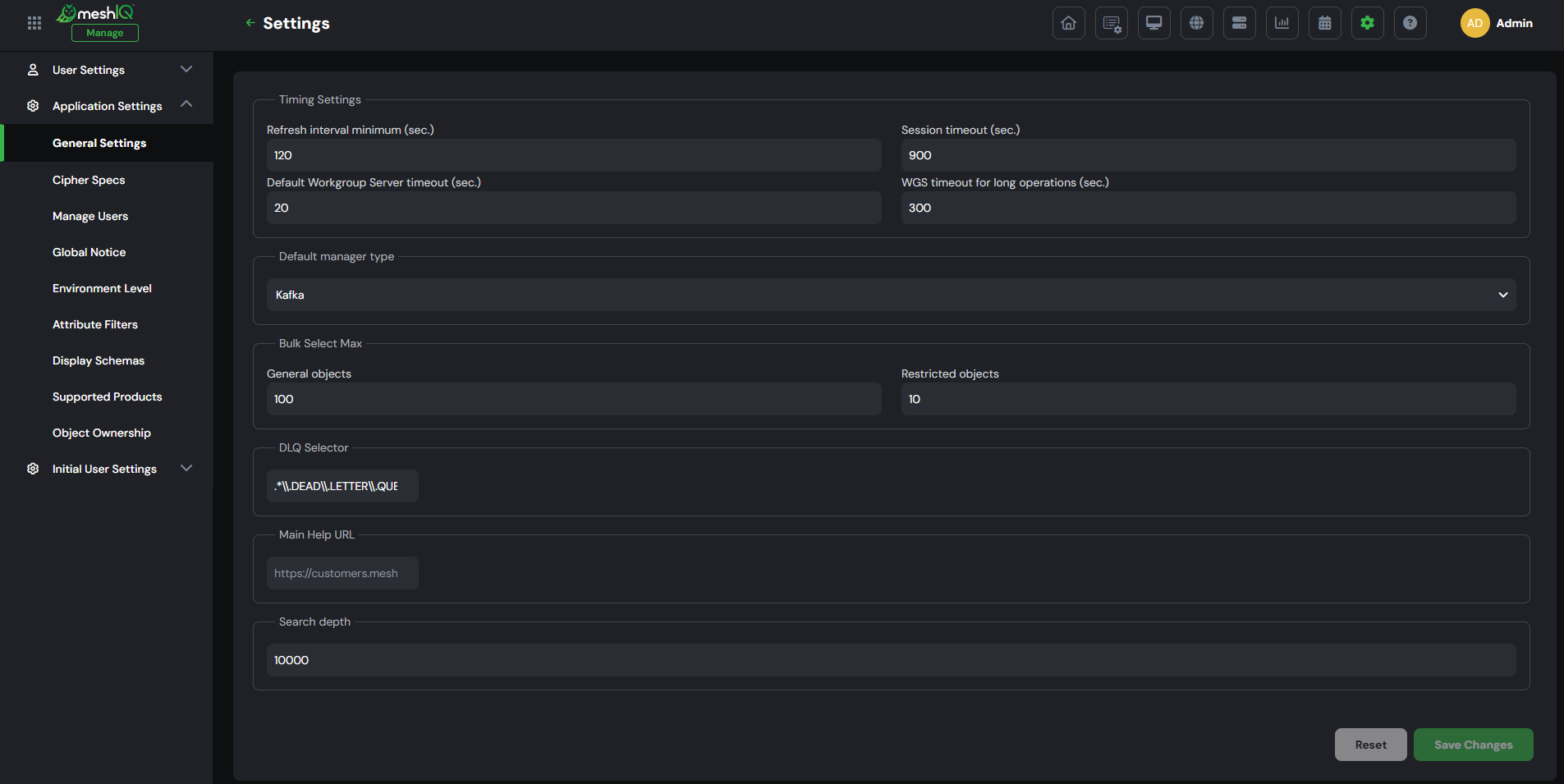
Initial User Settings - General tab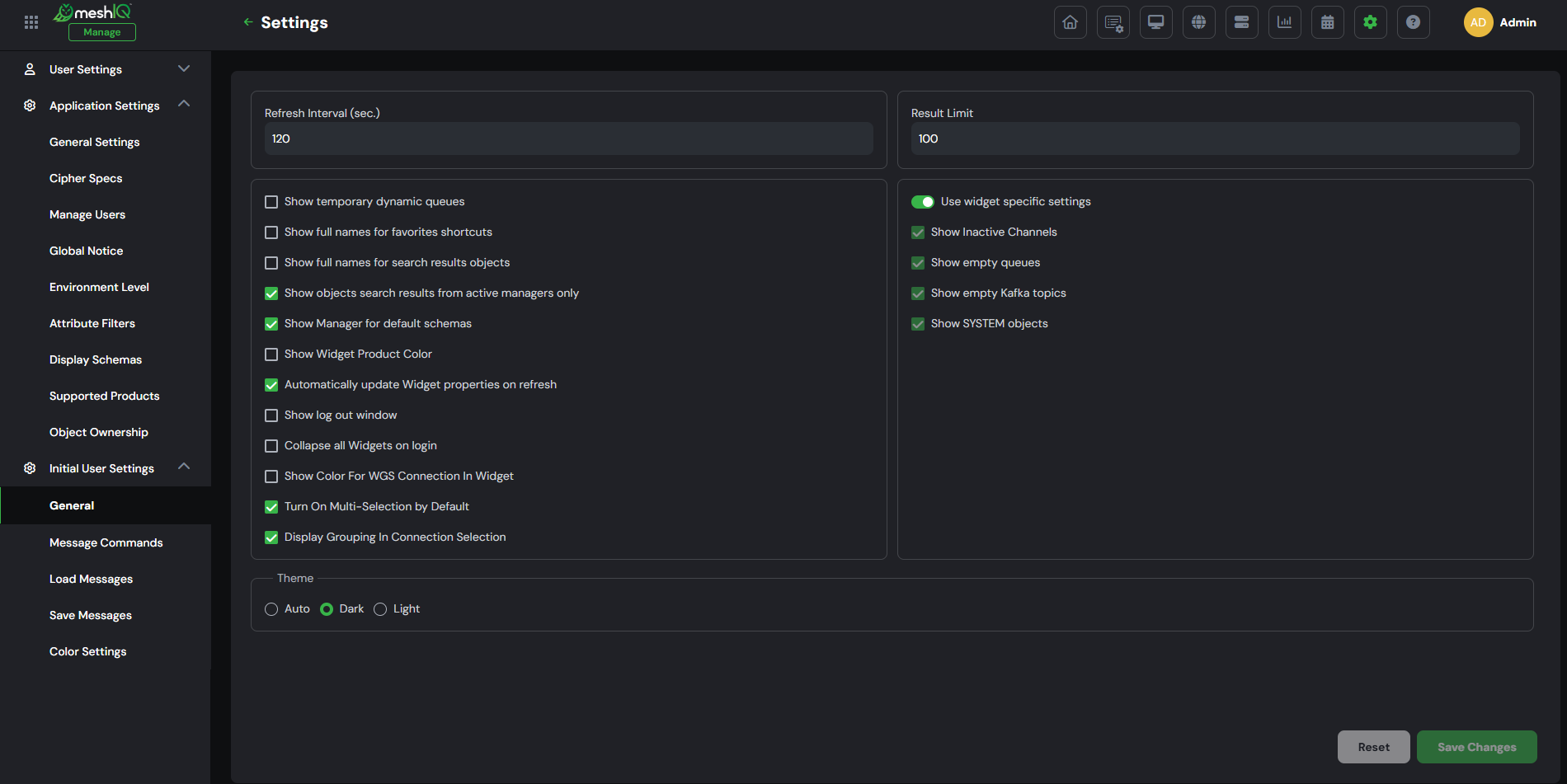
______________________________________________________________________________________________________________
Version 11.3 and Earlier
The User settings tab located on the User Settings window displays your individual settings.
The User Settings tab located on the Global Settings window displays global settings. Global settings are in effect only for new users that are added to the system. Admins can edit the global settings by clicking the Edit global settings button located at the bottom of the screen.
Updating the global settings will not affect existing users. Admins can reset a user’s settings back to the global settings on the Manage Users tab.
After making updates to global settings, click Save Changes to save and exit the screen. From this point forward, any new users added to the system will receive these settings. When editing global settings, you can switch back to updating your own settings by clicking the Edit user settings button located at the bottom of the window.
For explanations of these settings, see User Settings Field Descriptions.
User Settings
In version 11.2 and earlier
Global Settings