Some of the content described in this article is available in meshIQ Manage versions 12.1 and greater.
For a quick overview of what's new or changed, visit the meshIQ Highlights page for a version-by-version breakdown.
Jump to Section:
Version 12.x and Later
Version 11.3 and Earlier
Version 12.x and Later
To create a Subscription:
- Select Create Subscription from the Selected menu of a Subscription widget, or click Add Subscription
button.
- The Select Object Path dialog opens.
- Specify the object path for the new Subscription, then click Select path.
- The Subscription Create Window appears.
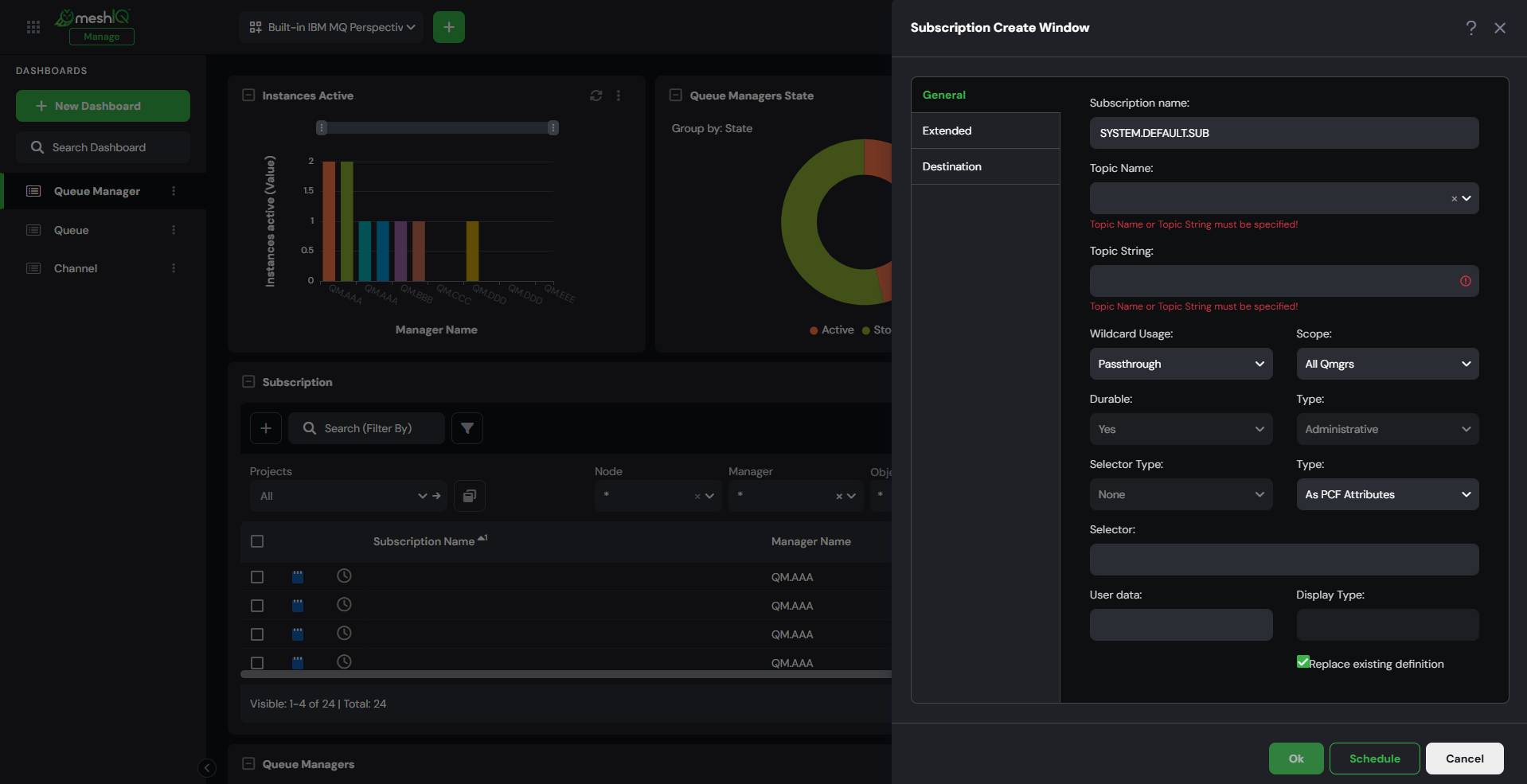
- Populate the fields on the General, Extended and Destination tabs to customize the properties of the new Subscription.
For detailed descriptions of the various input fields and tabs, go to the IBM Knowledge Center:
https://www.ibm.com/docs/en/ibm-mq/9.3.x?topic=properties-mq-subscription.
To understand how MQSC command keywords map to Subscription properties, see the section Map MQSC command keywords to subscription properties. - After entering all required information, click Ok to create the Subscription, or click Schedule to create the Subscription at a later time (see Scheduling).
General tab
Extended tab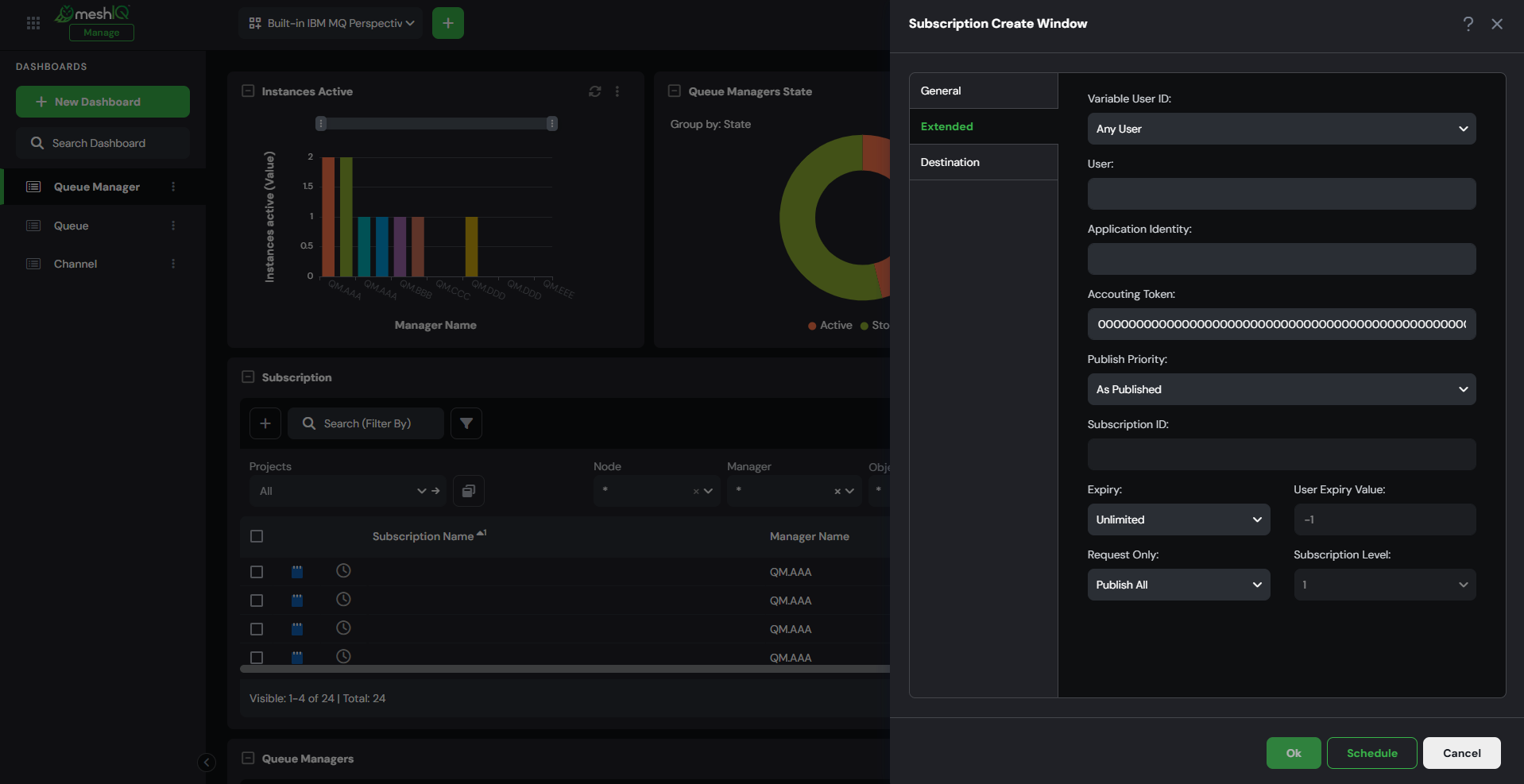
Destination tab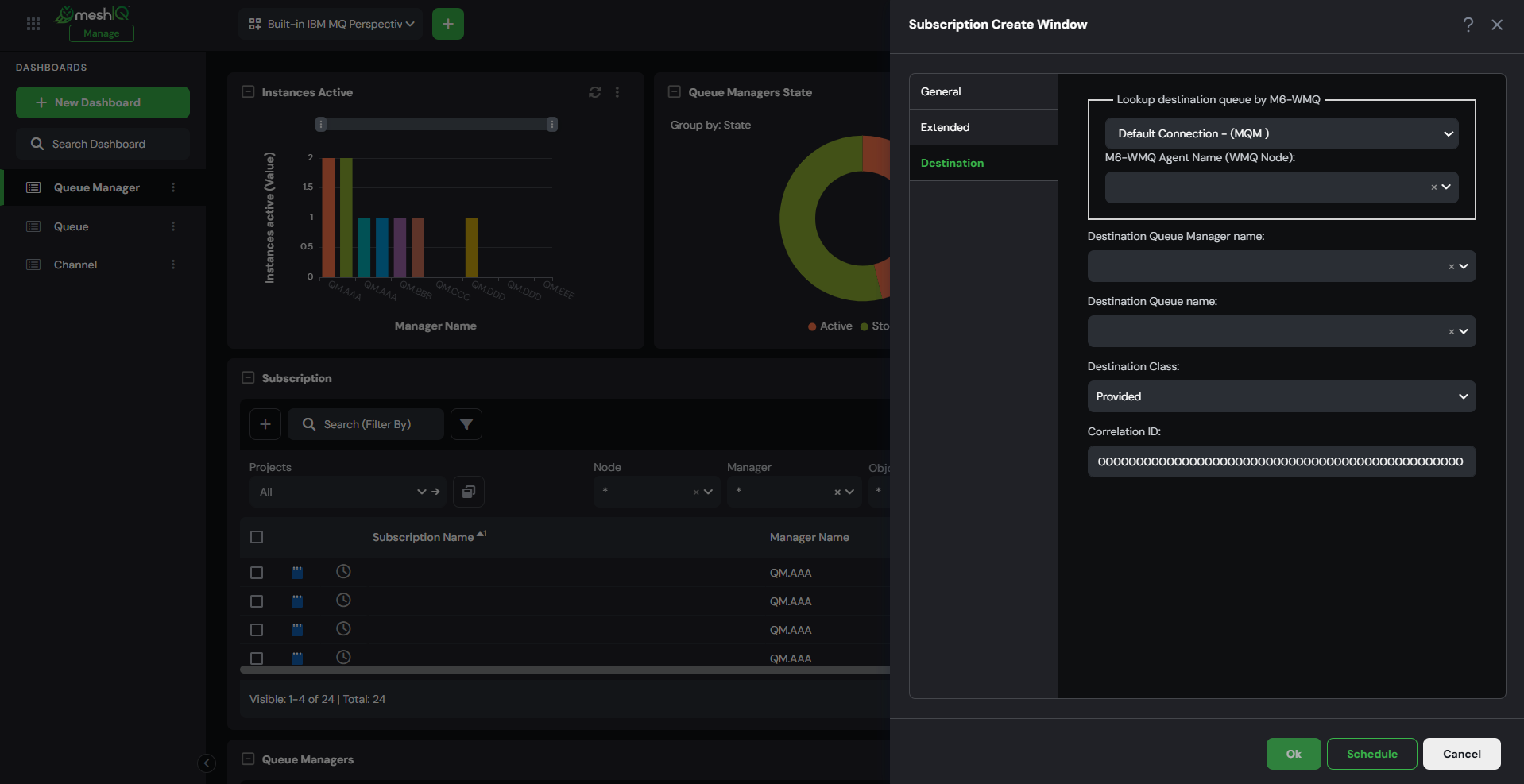
________________________________________________________________________________________________________________
Version 11.3 and Earlier
To create a subscription:
- Select Create Subscription from the pop-up menu (Selected menu from version 11.2 onwards) of a Subscription viewlet, or click Add
. The Subscription Create Window appears.
- Specify the properties of the new subscription. See Map MQSC command keywords to subscription properties for a list of MQSC command keywords and the properties that they correspond to.
- Click OK.