Some of the content described in this article is available in meshIQ Manage versions 12.1 and later.
For a quick overview of what's new or changed, visit the meshIQ Highlights page for a version-by-version breakdown.
Jump to Section:
Version 12.x and Later
Version 11.3 and Earlier
Version 12.x and Later
Object definitions are viewed and updated on the Properties window. Multiple objects can be viewed/updated at one time.
Select Object(s) to View Properties
Select all desired objects from a widget. Then, from the Selected menu, choose the Properties... option.
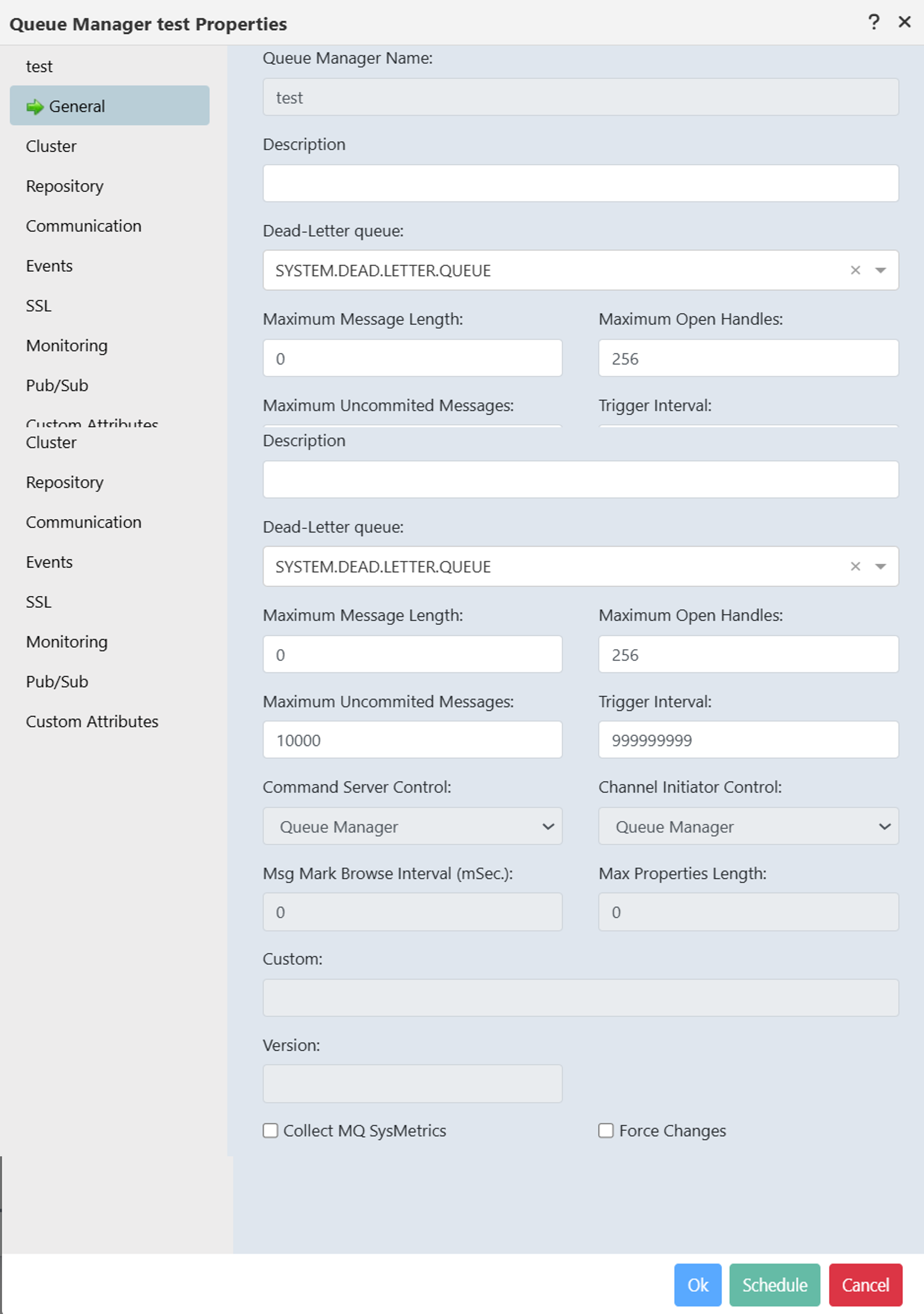
The Properties dialog opens, displaying the definitions of the selected objects. If you selected multiple objects, some fields may be formatted differently—this indicates that the selected objects have different values for that field.
Hover over these fields to view the individual values for each selected object.
Update Properties
Simply enter a new value within a definition field. Once finished, click Ok to save. You can also schedule the changes to apply at later time (See Schedule). Keep in mind that the update will apply to all selected objects.
______________________________________________________________________________________________________________
Version 11.3 and Earlier
Object definitions are viewed and updated on the Properties window. Multiple objects can be viewed/updated at one time.
Select object(s) to view properties
Select all desired objects from a viewlet. From the Action menu (Selected menu from version 11.2 onwards ), select the Properties... option.
| Properties options in version 11.1 and earlier | Properties options in version 11.2 and later |
The Properties window opens displaying the definitions of the selected objects. If you selected multiple objects, you might see fields with blue lines. These blue lines signify that the selected objects have different values for this definition. Hover over these fields to view each selected object's value.
Properties Window in version 11.1 and earlier
Properties Window in version 11.2
Update Properties
Simply enter a new value within a definition field. Once finished, click Ok to save. You can also schedule the changes to apply at later time (See Schedule). Keep in mind that the update will apply to all selected objects.